Before you send anyone to a course, look at it the way they will. Open the course and click Preview as learner (the eye icon) in the top bar of either the basics or the content screen.
It opens a new browser tab at /preview/<courseId> with a slim banner across the top reading You’re previewing as a learner. Your dashboard stays exactly where it was in the original tab.
app.learn-360.com/preview/…
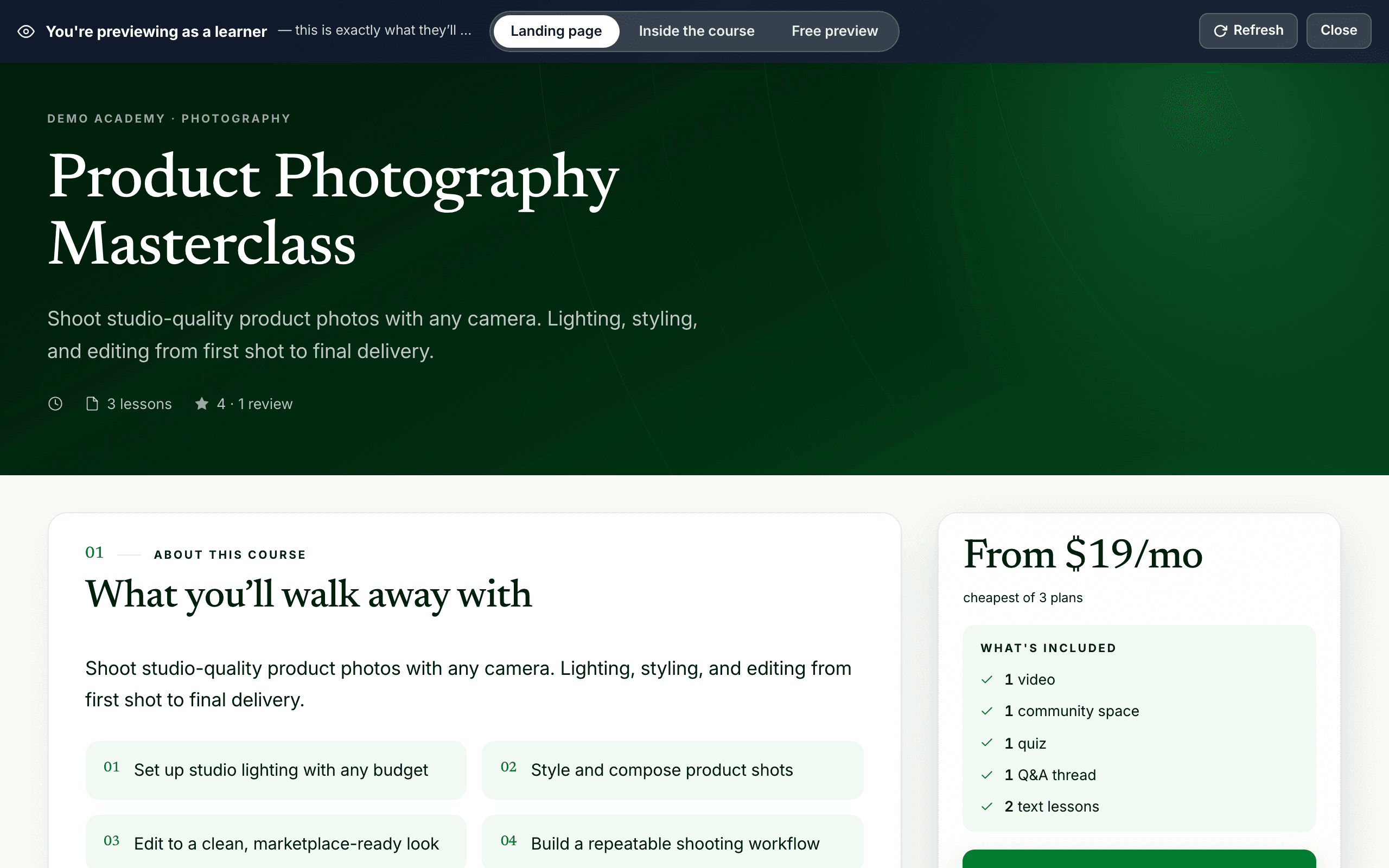
The three views
- Landing page — your public sales page: the layout, cover, description, curriculum, instructor, reviews and price. This is what someone sees before buying.
- Inside the course — the player itself, as an enrolled learner sees it: the nested course menu, each activity, and the Next-page flow.
- Free preview — what a prospect reaches when you have marked content as a free sample. The single best way to check where the lock actually falls.
Two controls sit alongside: Refresh, to pick up edits you just made in the other tab, and Close.
Edits don't appear by themselves. The preview tab does not watch for changes. Make your edit in the builder tab, then press Refresh in the preview tab.
The one thing preview leaves behind
“Inside the course” enrolls you, and there is no undo. Opening Inside the course creates a real enrollment on that course for your own account — flagged as a preview, but real — and clicking through writes real progress against it. There is no Reset button anywhere in the product to clear it.
Two consequences worth knowing. Your own preview enrollment is counted by the guard that protects enrolled learners, so a course you have previewed will warn you about enrolled people when you try to hide or unpublish it. And your clicking shows up as activity on that course. Preview the Landing page freely; open Inside the course deliberately.
Two consequences worth knowing. Your own preview enrollment is counted by the guard that protects enrolled learners, so a course you have previewed will warn you about enrolled people when you try to hide or unpublish it. And your clicking shows up as activity on that course. Preview the Landing page freely; open Inside the course deliberately.
A sensible preview pass
- Landing page — is the promise clear, is the price right, does the curriculum read well?
- Free preview — does the sample stand alone, and does the lock land where you meant?
- Inside the course — walk the first lesson end to end. Check that each activity completes the way you expect, and that Next page is never blocked by something you forgot to finish.
app.learn-360.com/preview/…
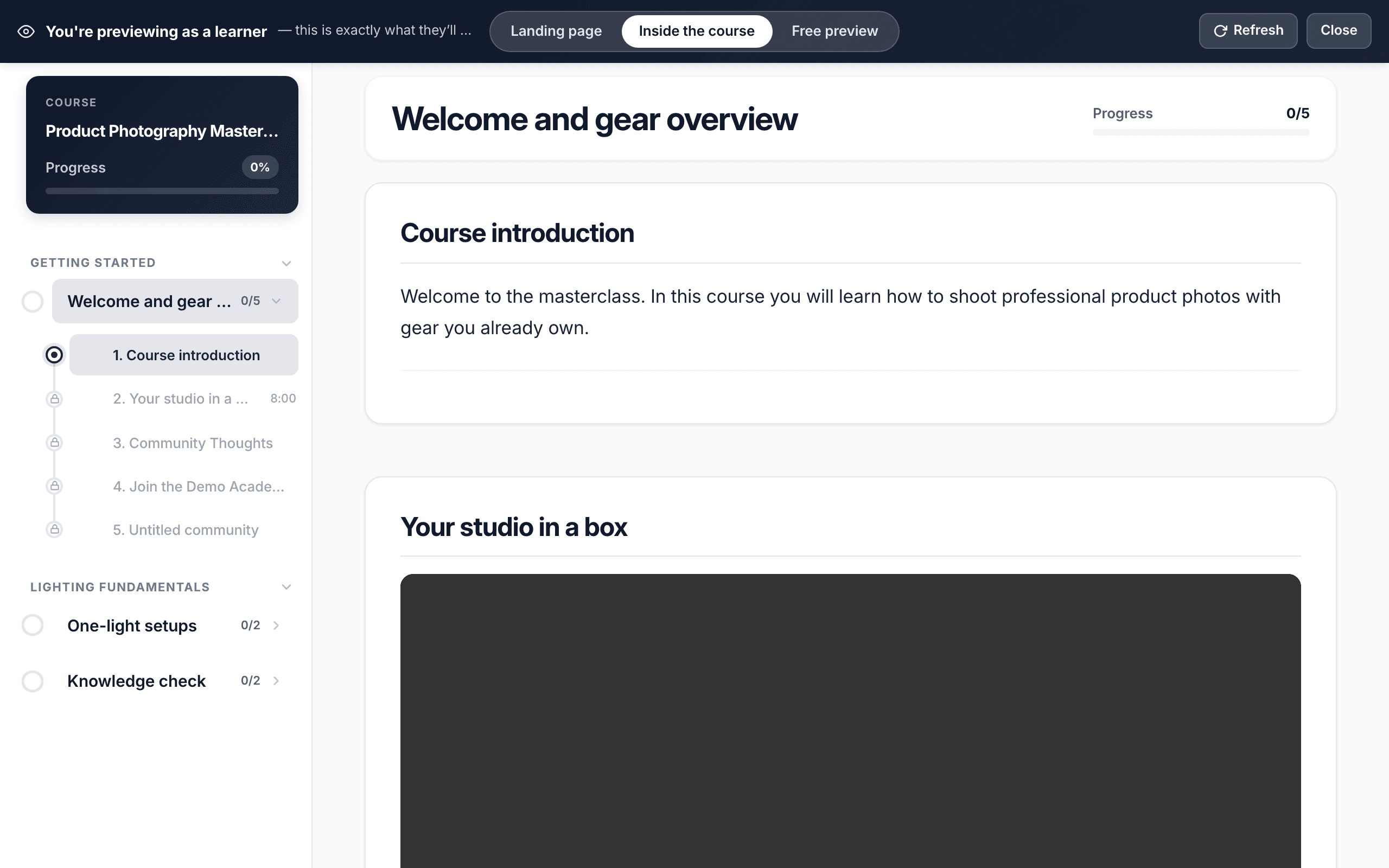
Previewing a draft
You do not have to publish first. Preview works on a draft course, landing page included, which is the right time to use it — before anyone can see your mistakes.
What preview does not show you
- Real checkout. You can see the price and the buy button, but completing a purchase needs a real processor. Test that with a 100%-off discount code or your processor’s own test mode.
- Emails. Enrollment and completion emails are not sent for a preview. Check those from the Email Center.
- A second learner’s view. Preview is you. For gating that depends on team seats or verification, test with a real second account.
When it all looks right, go to Publish your course.