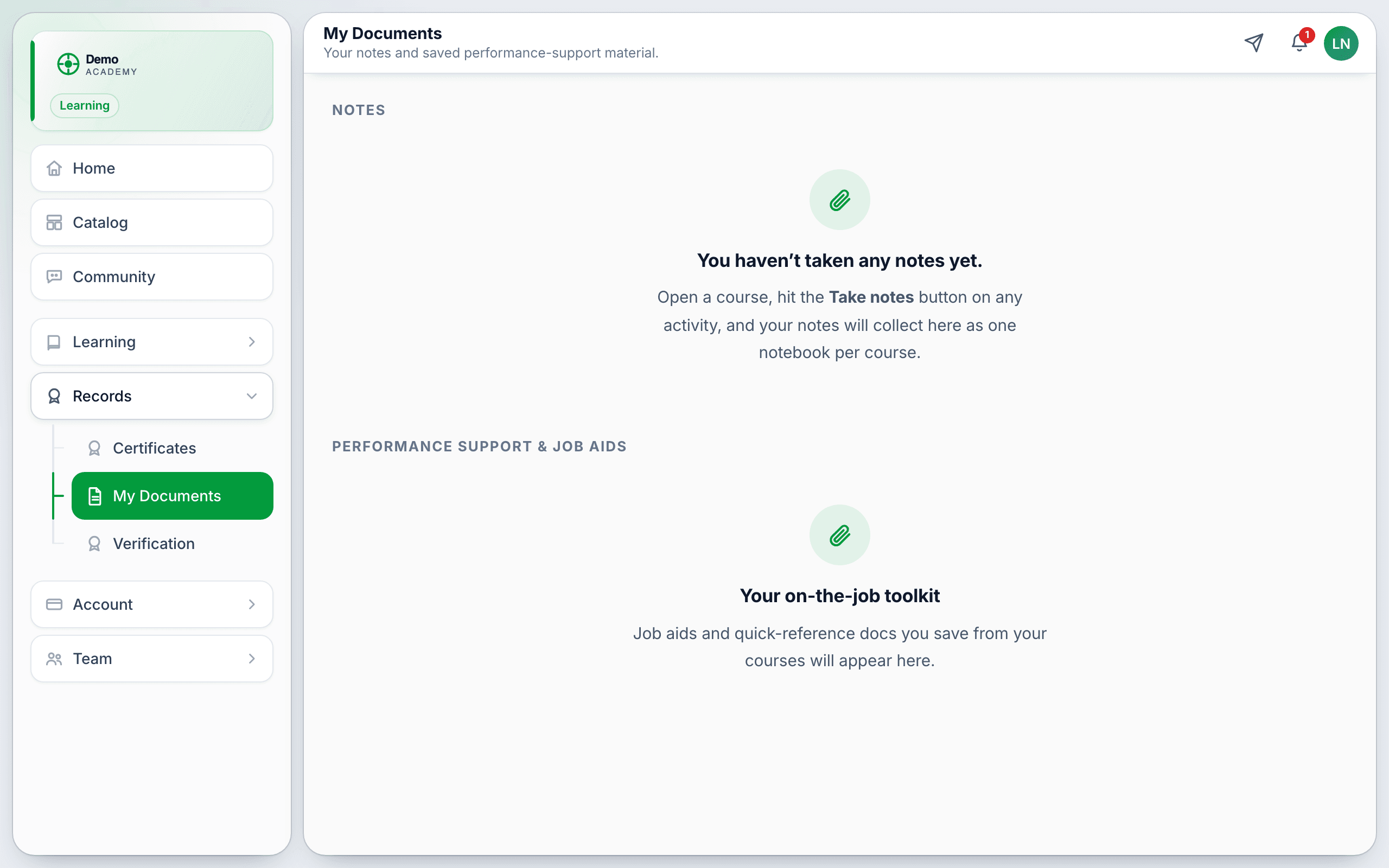
My Documents is the learner’s own filing cabinet. It sits in their sidebar under Records, and it holds two things: the notes they took while studying, and the job aids they chose to keep.
You do not set this up. It is on for every learner on every plan. This article exists so you can answer the questions learners ask you about it.
Taking notes
Inside a lesson there is a floating Take notes button. It opens a drawer tied to the activity the learner is on — the current one is marked You’re here — so notes file themselves under the right lesson without the learner naming anything.
Typing autosaves about 700 milliseconds after they stop. The drawer footer shows Saving… then Saved. There is no save button and nothing to lose by closing the drawer.
The course notebook
In Records → My Documents, each course the learner has written in appears as a card. Opening one shows every note for that course in order, which is where it starts to read like a notebook rather than a pile of scraps. From there they can export the notebook as a PDF to keep or print.
Saved job aids
The second section, Performance Support & Job Aids, holds everything they pressed Save on. If you publish a new version of an aid, their copy is flagged Updated here.
What you can see as an admin
The questions learners actually ask
- “Where did my notes go?” — Records → My Documents, grouped by course, not inside the lesson.
- “Can I get them out?” — Yes, as a PDF from the course notebook.
- “Will I keep them when I finish?” — Yes. Notes and saved job aids stay after completion, and after a refund.
- “Can my employer read them?” — No. Not even you can.
- “Why is My Documents locked?” — If you require verification, every row except Verification is locked until they are approved.