Learn 360 collects feedback with a Feedback activity: a star rating and a written review that you drop into a lesson like any other block — usually at the end. What comes back lands at InsightsFeedback for you to moderate.
Ask for it
In the course builder, add a Feedback (star rating + review) activity. You can set the intro text, the star-rating question, the written question, add a yes/no question, and choose to show feedback anonymously.
The four states
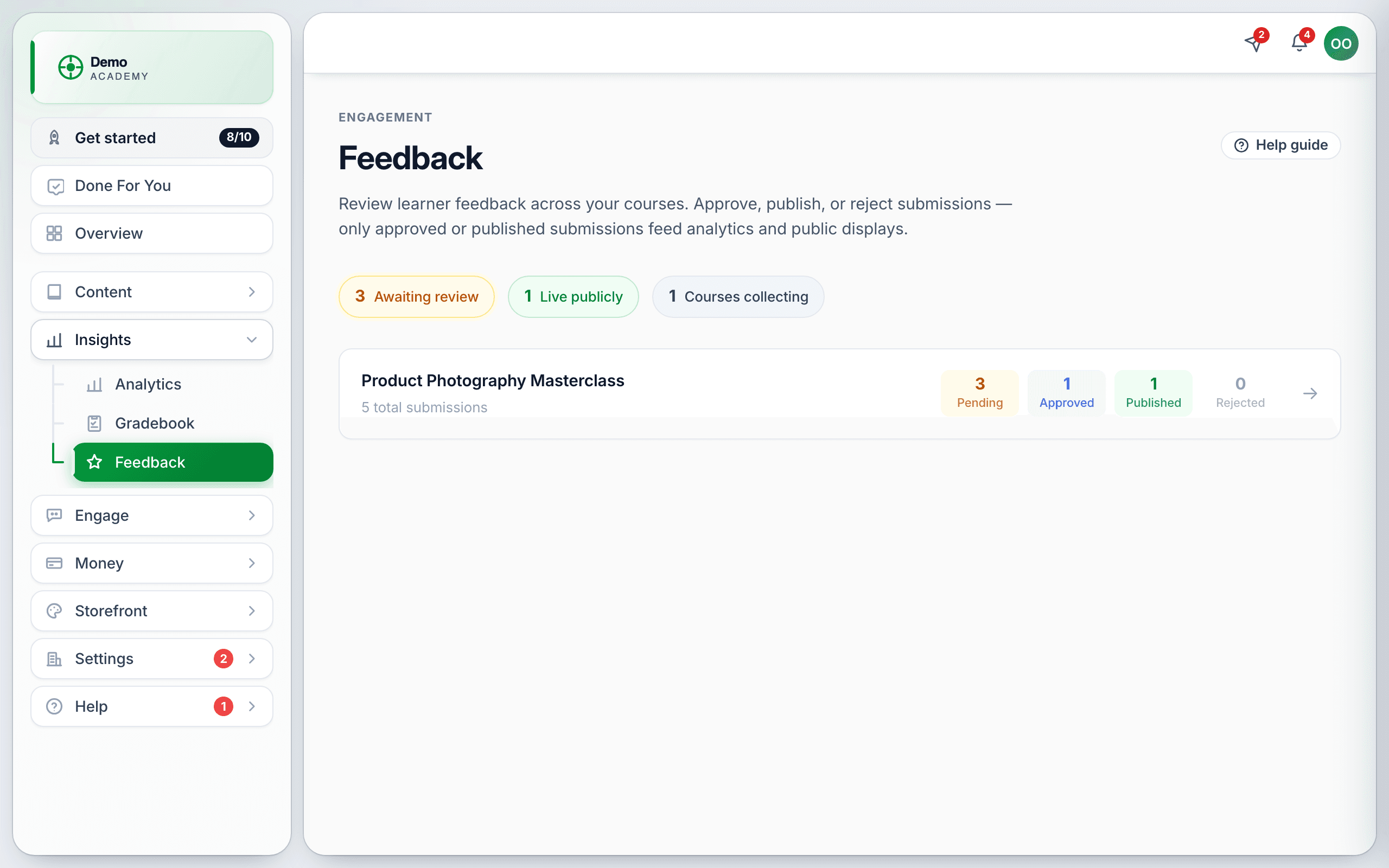
Every submission arrives as Pending and goes one of three ways:
- Pending — waiting for you. Counts for nothing yet.
- Approved — you accept it. It feeds your analytics.
- Published — approved and shown publicly.
- Rejected — discarded. Feeds nothing.
Working through the queue
The top of the page gives you three numbers: Awaiting review, Live publicly and Courses collecting. Underneath, each course shows its total and a Pending / Approved / Published / Rejected split. Click through to read individual submissions and set each one’s state.
Moderating honestly
You control what shows publicly, which makes it worth being deliberate about where you draw the line. A sensible policy, and the one we would defend:
- Reject only what is abusive, off-topic, or not about the course — spam, personal attacks, a support request in the wrong box.
- Approve everything genuine, including the critical ones. Those are the ones that tell you what to fix.
- Publish a representative selection, not only the five-stars. A wall of perfect reviews reads as fake and converts worse than a believable mix.
Deleting the activity deletes the reviews
Where else feedback appears
Approved and published ratings feed your analytics, and your Overview page has a Review pending feedback quick action when there is a queue waiting.
Feedback is a one-way rating. For conversation, use a discussion or a Community. For graded work, use an Assignment.