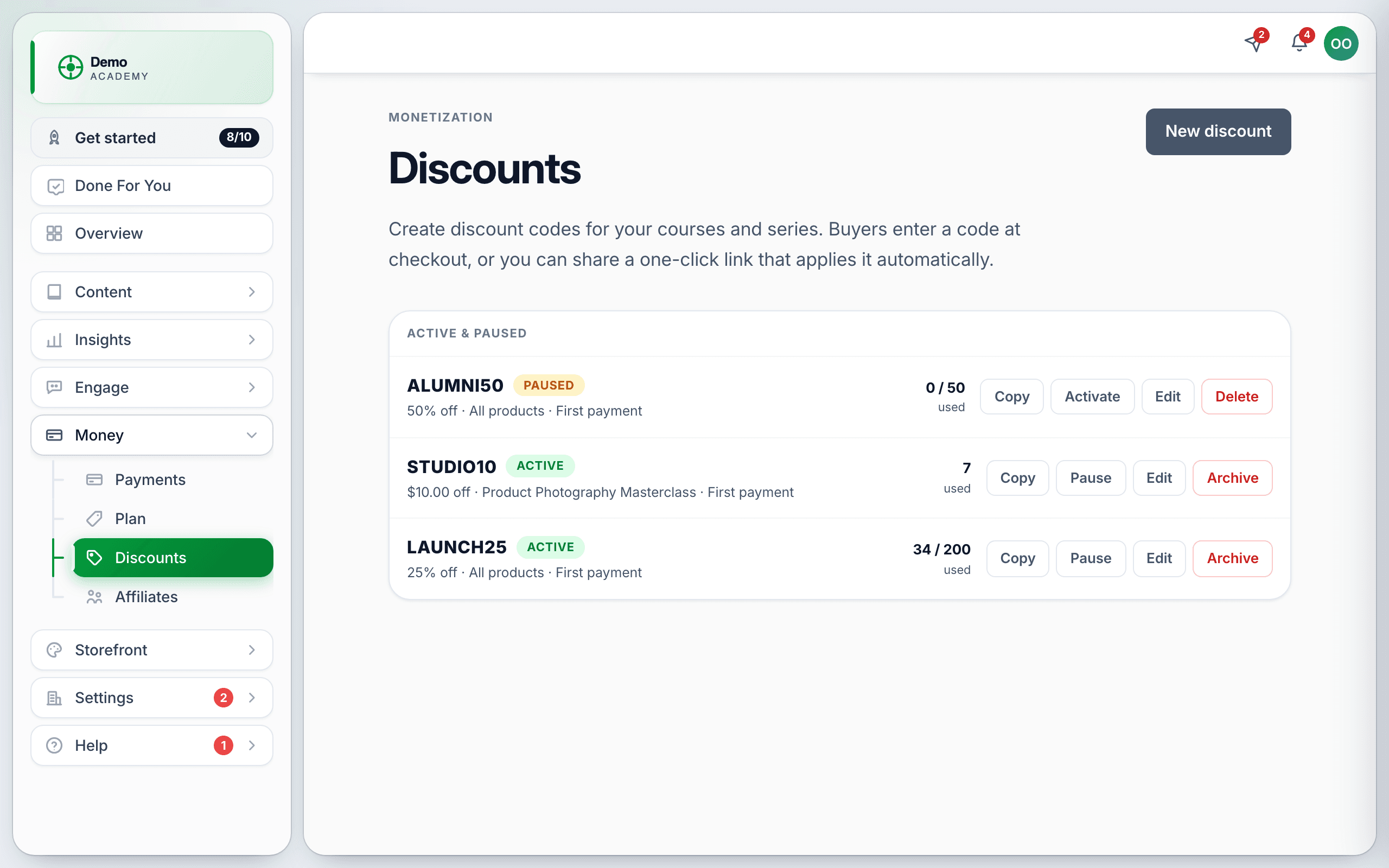
A discount code is a word a buyer types at checkout to pay less — LAUNCH25, ALUMNI50, whatever you like. You create them under MoneyDiscounts, and they work on courses, series, coaching offers and paid appointments.
Every discount is a recorded code. Learn 360 never quietly lowers a price: the code, the amount it took off and the buyer who used it are all written down, which is what keeps your payment processor happy and gives you an audit trail you can defend later.
Create a code
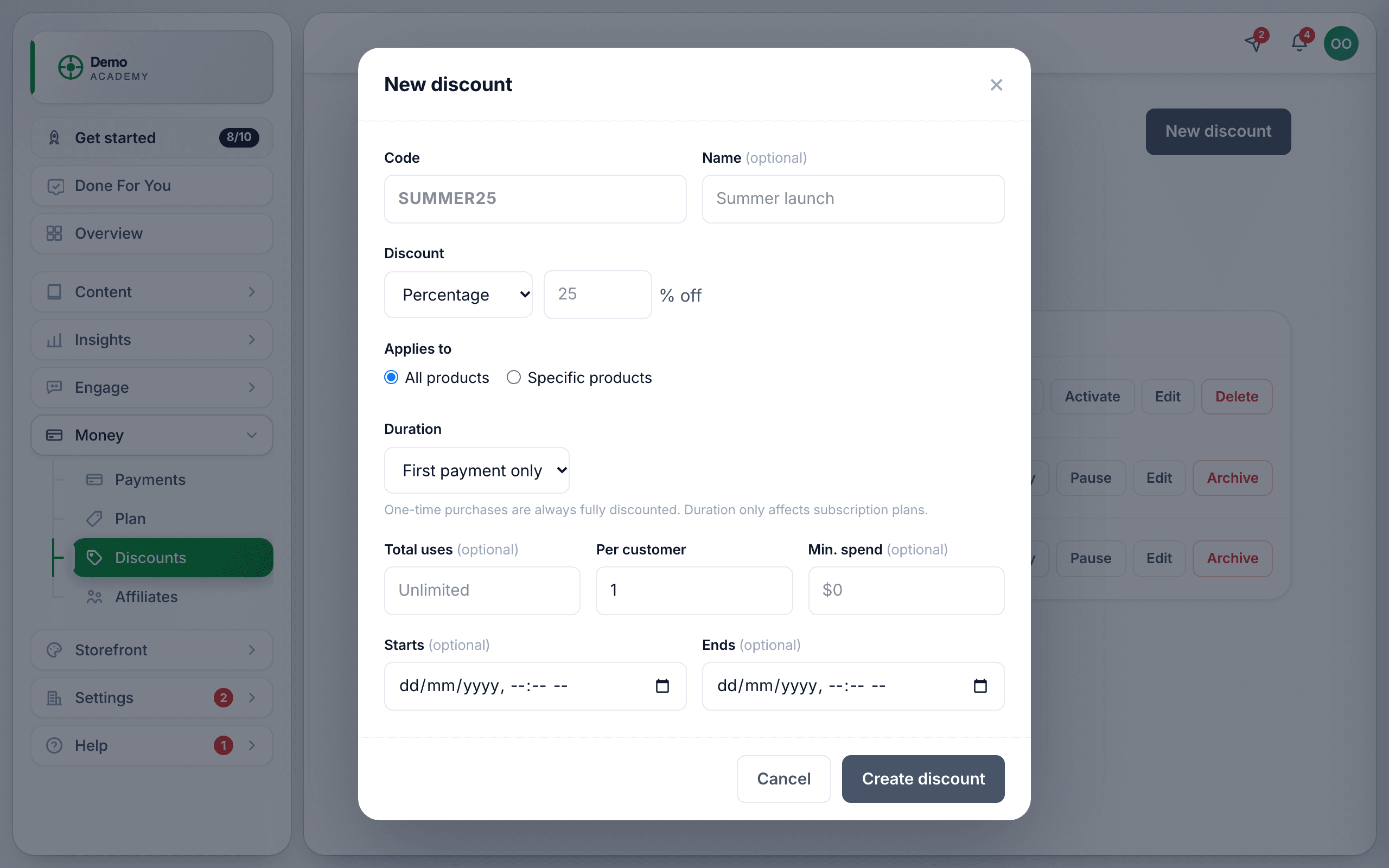
Click New discount. The modal is short but every field matters, so here is the lot.
Code and name
- Code — what the buyer types. It is forced to UPPERCASE as you type. Letters, numbers, dot, dash and underscore only, 2–40 characters. This is the only required field.
- Name (optional) — an internal label like Summer launch. Buyers never see it; it is there so your list still makes sense in six months.
Discount — percentage or fixed amount
Choose Percentage (1–100) or Fixed amount. A percentage travels well; a fixed amount does not.
Applies to
All products discounts everything you sell. Specific products opens a checklist where each row reads Title · type — course, series, appointment, coaching, community or group.
Duration
First payment only, Every payment, or First N months. As the helper text under the field says: one-time purchases are always fully discounted — duration only affects subscription plans. If you sell a $30/month membership and want two cheap months, pick First N months and enter 2.
Limits
- Total uses (optional) — the whole budget for the code. Blank means unlimited.
- Per customer — how many times one learner may use it.
- Min. spend (optional) — the order has to be at least this much, before the discount.
Starts and Ends
Schedule the code in advance, or give it a deadline. Both are optional.
Share a code
The Copy button on each row copies the code itself, not a link — there is no copy-link button anywhere. To make a one-click link, add ?code=YOURCODE to a course or series URL yourself:
https://app.learn-360.com/c/<courseId>?code=LAUNCH25https://app.learn-360.com/s/<seriesId>?code=LAUNCH25
A signed-in buyer who opens that link gets the discount applied for them. Three places where the link does not work: booking pages, in-course appointment activities, and links opened inside an embedded catalog (the embed breaks out to the full course page and drops the parameter). In those cases the buyer types the code by hand instead.
What the buyer does
On a course, series or coaching page the buyer opens the pricing modal, types the code into the discount field, and presses Apply. The price updates with the saving shown underneath.
A code that brings the price to zero skips payment entirely on a one-time purchase: access is granted immediately and the buyer lands on You’re enrolled! The redemption is still recorded. On a subscription, a 100%-off code still goes through the processor so renewals are set up — and later charges are only free if you set Duration to Every payment or enough months.
Pause, archive, and the limits of both
Pause stops new buyers using a code while keeping it in the list; Activate brings it back. Archive retires it for good.
Two more things worth knowing before you edit or delete:
- Editing a code that has been used creates a second coupon at your processor. Existing subscribers stay on the old terms permanently; only new buyers get the new ones. If you want different terms, a new code is usually cleaner than an edit.
- A used code can never really be deleted. The red button on an archived row says Delete, but the confirmation says Archive and the code is simply re-archived. Archived codes also have no Edit button and the Status menu only offers Active and Paused, so there is no way to revive one — make a new code instead.
Reading the numbers
Each row shows uses as 7 or 34 / 200 when you set a total. Open Edit for Redemptions, Revenue driven and Discount given.
Why a code is being refused
Every message a buyer can see, and what it actually means:
- “That code isn’t valid.” — wrong code, or it belongs to a different academy.
- “That code is no longer available.” — paused or archived.
- “That code isn’t active yet.” / “That code has expired.” — your Starts / Ends dates.
- “That code doesn’t apply to this item.” — the code is scoped to specific products and this is not one of them.
- “You’ve already used this code.” — the per-customer cap.
- “That code has reached its limit.” — the total-uses budget is spent.
- “Discount codes can’t be applied to subscription plans paid with PayPal yet.” — exactly that. Codes do work on PayPal one-time orders.
Two more refusals are by design rather than faults. Discounts never apply to a free package, because there is nothing to discount. And a refund never returns a use: the redemption stands, so a refunded buyer is still blocked by the per-customer cap, and the total-uses budget stays spent.
A different thing with the same name
There is a second discount field in Learn 360 — on MoneyPlan, where you enter a code from us against your own Learn 360 subscription. That is our code for you, not your code for your buyers. See Upgrade to Pro.