Everything you do as an owner or an admin happens behind one menu. The sidebar on the left has three pinned rows at the top and seven collapsible groups underneath. Learn those groups and you will never hunt for a feature again.
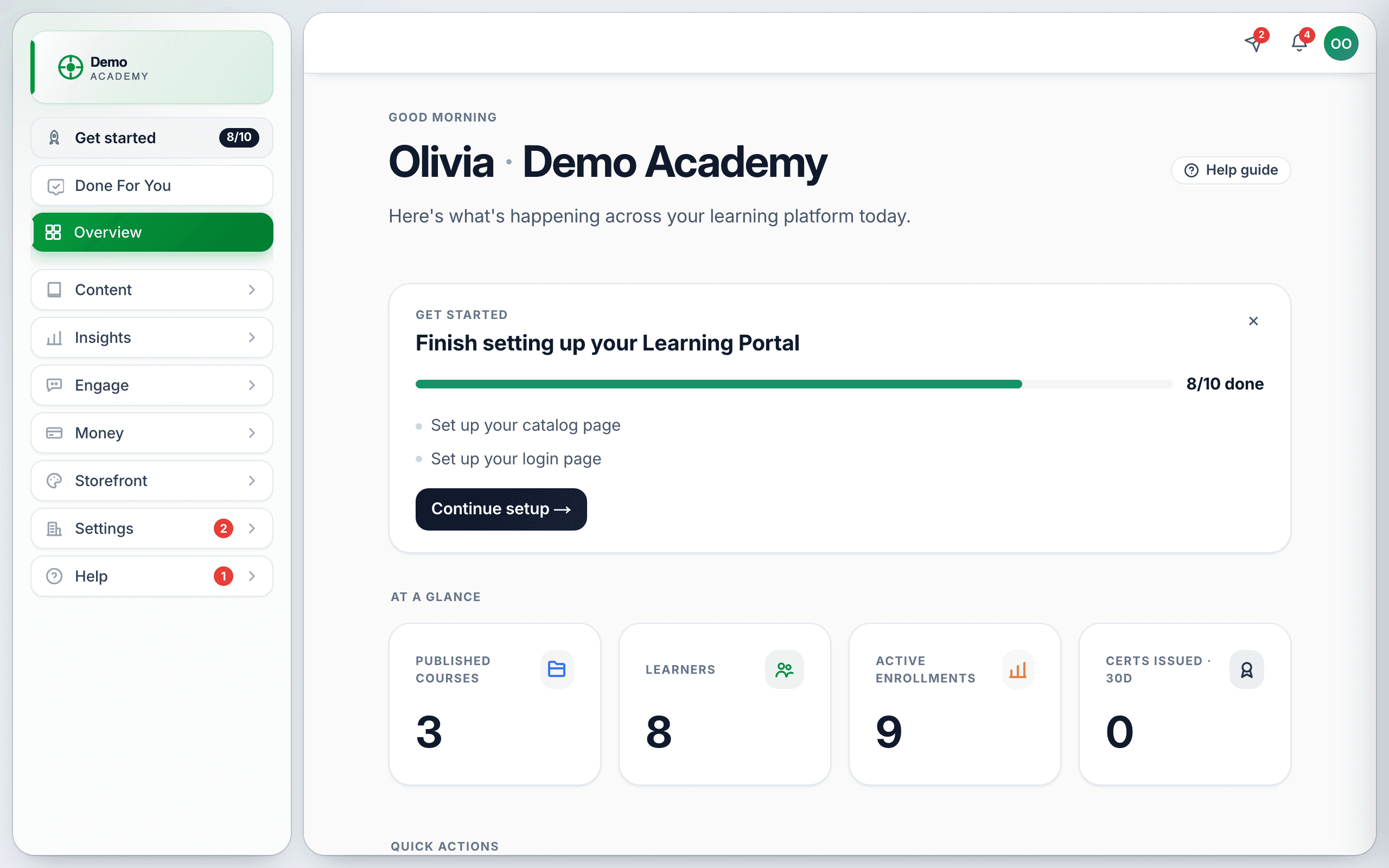
Start from the Overview
Overview is your home page and the one screen worth checking daily. It gives you four headline numbers — Published courses, Learners, Active enrollments and Certs issued · 30d — above a short list of quick actions: Create a new course, Invite a team member, Configure your catalog and Review pending feedback. While your setup is unfinished it also carries the Get started progress card.
The three pinned rows
- Get started — the setup checklist, with an X/Y counter. It only appears while your setup is unfinished. See the Get started checklist.
- Done For You — have our team set your academy up for you, or request a feature. See Done For You.
- Overview — your home page: four headline numbers and a few quick actions.
The seven groups
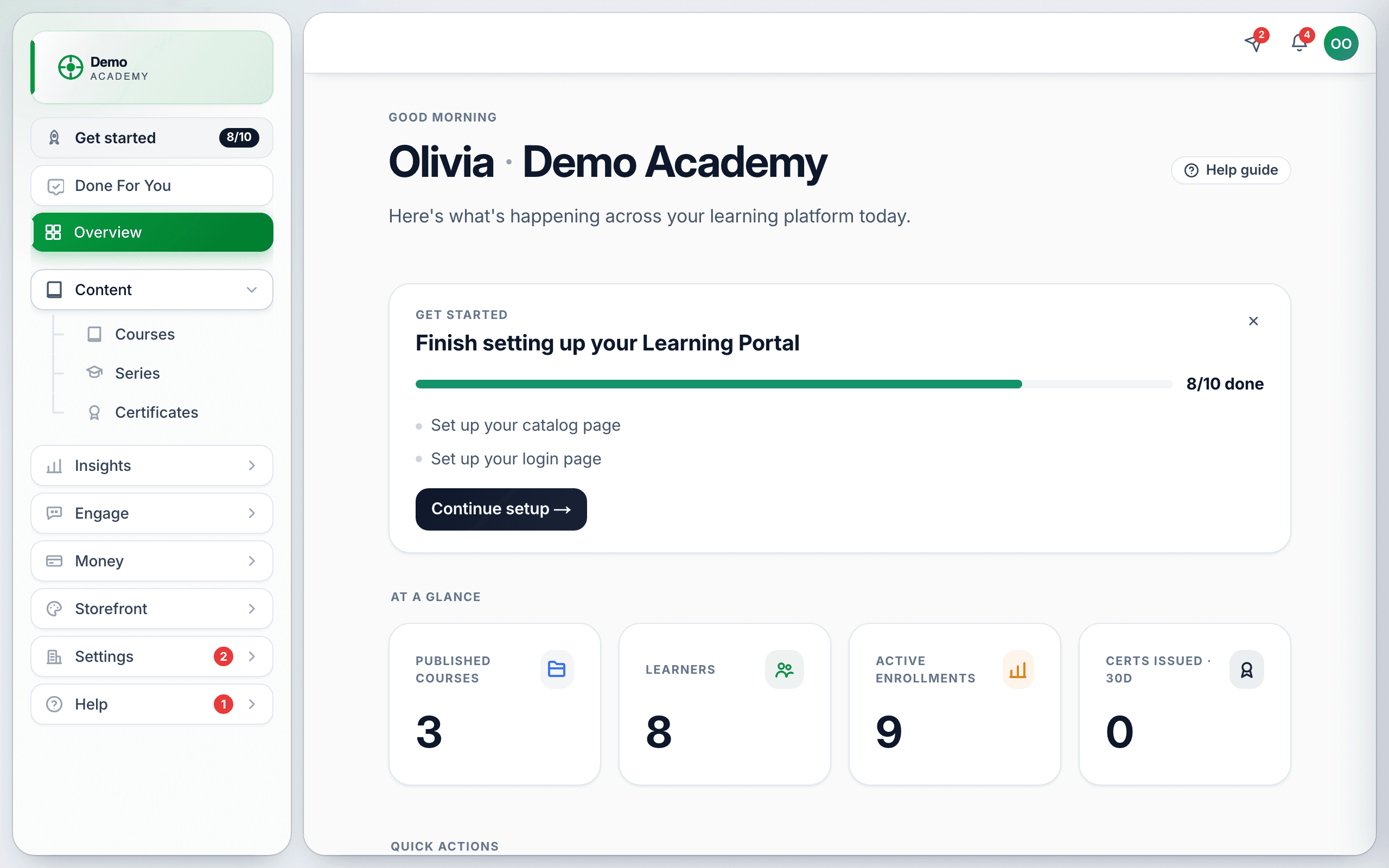
Click a group to open it. Opening one closes the others, so the menu stays short.
Content
Courses, Series, Certificates. Courses and Series are one row each — the old Published/Drafts/Archived split became tabs on the page itself, now labelled Live, Drafts, Hidden and Layouts.
Insights
Analytics, Gradebook, Feedback. Numbers, marks and what learners thought.
Engage
Community, Coaching, Bookings. Everything that is not a course.
Money
Payments, Plan, Discounts, Affiliates. Payments is your processor and your sales; Plan is what you pay us.
Storefront
Branding, Catalog page, Login page. How your academy looks to the outside world.
Settings
Company profile, Team, Verification, Integrations, Email Center, Activity Log.
Help
Help Center (this site — it opens in a new tab, marked with a small diagonal arrow) and Support, where you answer your learners’ tickets and raise your own with us.
The red badges
Four rows carry a count when something needs you:
- Support — tickets needing attention.
- Gradebook — submissions waiting to be marked.
- Certificates — certificates that have expired.
- Verification — learner documents waiting for review.
When a group is collapsed, its header shows the sum of the badges inside it — so a 2 on Settings means two things need you somewhere under Settings. The sidebar caps its display at 9+.
The top bar
Along the top: a Messages dropdown, a notifications bell, and your profile menu. The profile menu is where Settings lives — it opens a Your account slide-over for your personal details, which is a different thing from SettingsCompany profile, where your company details live.
Banners you may see
- Save your login link — shown once after your first sign-in. Your academy has a private login URL and this is your prompt to bookmark it. See Create your account.
- A platform announcement — occasional news from us, dismissible.
- A downgrade notice on Overview if your plan has changed.
- “Viewing as” — an amber bar shown only when a Learn 360 super admin is looking at your workspace to help with a support request.
On a phone
The sidebar collapses behind a menu button in the header and slides in as a drawer. The same groups and badges are there. The whole admin side works on a phone, though building course content is much easier on a laptop.