A Community is the place your learners talk to each other rather than to your course. It is a feed with categories, a members list, a calendar, a classroom and a leaderboard — and you can sell access to it on its own.
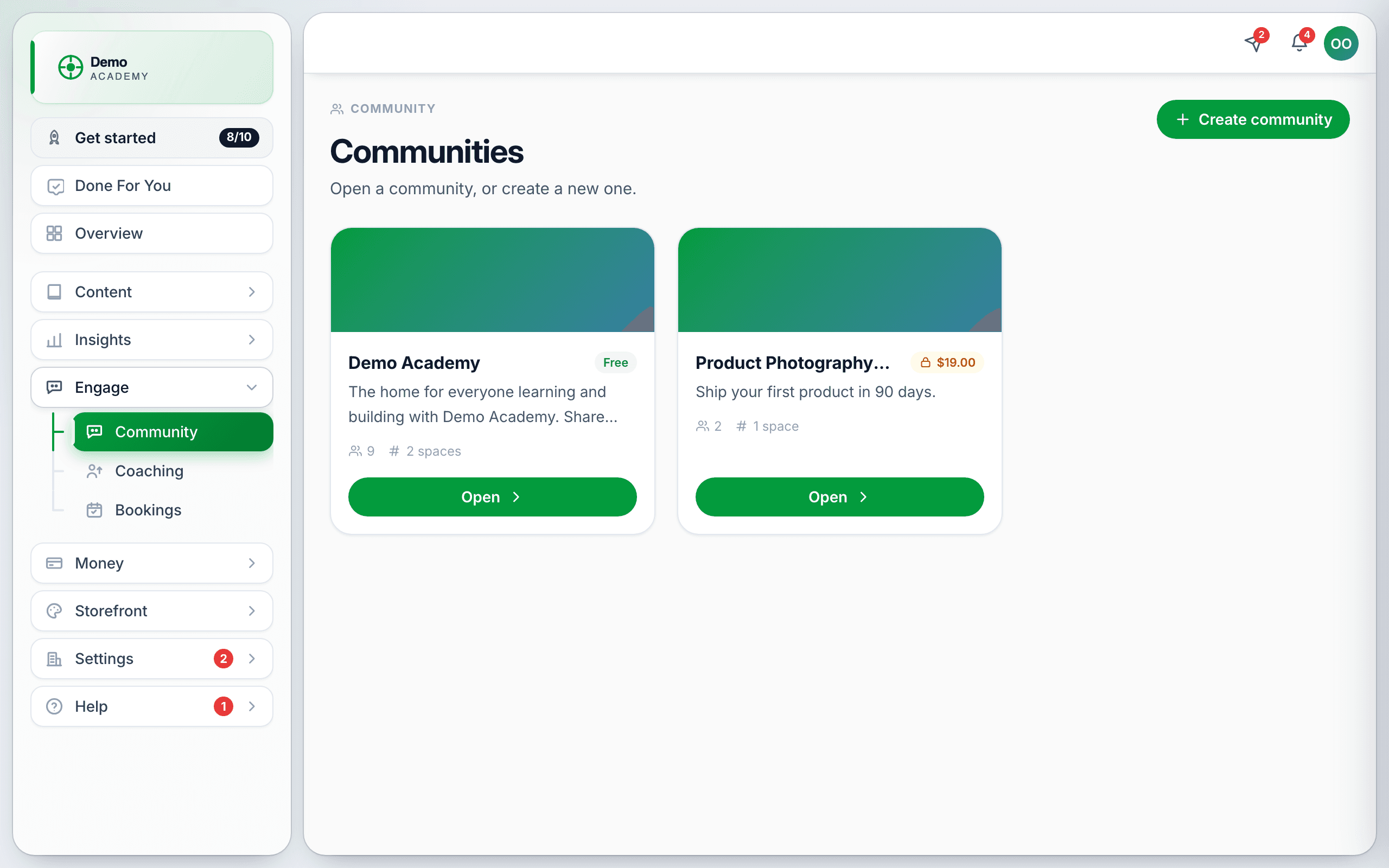
It lives at EngageCommunity. Every admin can see this row; it cannot be hidden by permissions.
Create one
Press Create community. Give it a name and a description — the one in the demo reads “The home for everyone learning and building with Demo Academy. Share wins, ask questions, and join our weekly live calls” — and decide whether it is Free or paid.
You can run more than one: a free one open to everybody, and a paid one for a specific program. Each shows its member count and its price on the list.
Inside a community
Seven tabs:
- Community — the feed. The main event.
- Classroom — course-like material that belongs to the community.
- Calendar — events members can RSVP to.
- Members — who is in, with their roles.
- Leaderboards — who has been most active.
- About — the description new members read.
- Settings — access, visibility and the rest.
The feed
Posts are filed under categories — in the default setup 💬 Chat, 🏆 Wins, ⁉️ Q&A, 💎 Gems and 🚀 Updates — with an All view across everything. Members write with a Write something… box, posts carry reactions and comments, and a post can be pinned to the top.
Points, levels and the leaderboard
Members earn points for taking part, which give them a level shown next to their name, and the sidebar carries a 30-day leaderboard. It resets on a rolling window, so a member who was active last month does not sit at the top forever.
Members
The side panel shows Members, how many are Online, and how many Admins. Invite people brings others in. Members can have different roles — ordinary member, moderator, admin — so you can hand moderation to someone you trust.
Groups, free and paid
A community can be divided into groups (the list calls them spaces). Each has its own feed and its own access rules: free or paid, and public or private. That is how you run an open community with a paid inner circle inside it, without two separate places.
Letting learners in from a course
Add a Community activity to a lesson to invite learners in at the right moment, with Is joining required? deciding whether it blocks completion. See Every activity type explained.
Messages
Members can message each other directly, and you have an inbox at Community → Messages reachable from the Messages dropdown in your top bar.
Getting it started
Moderating
Pin what matters, and keep the categories meaningful — a feed where everything is Chat stops being browsable. For moderating discussion inside a lesson rather than in the community, see Moderate discussions.