Bookings is scheduling built into your academy — the job you would otherwise hand to Calendly. You set your hours, connect your calendar, create the kinds of appointment you offer, and share a link. People pick a slot. It lands on your calendar.
It lives at EngageBookings and has three tabs: Availability & calendars, Booking types and Bookings.
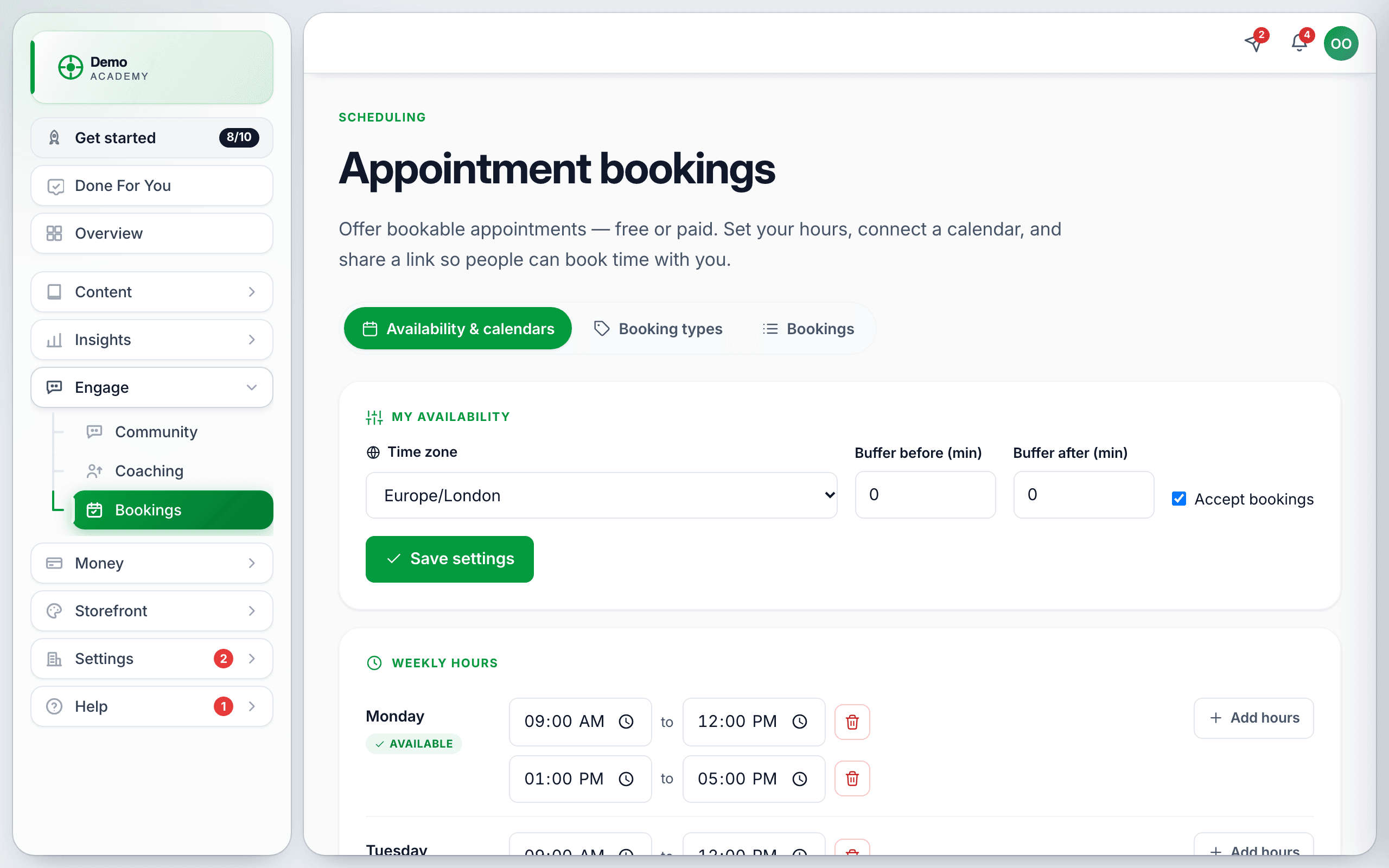
1. Availability & calendars
Do this first — a booking type with no hours behind it can never be booked.
My availability
- Time zone — yours. Everything you enter is in this zone; visitors see slots in theirs.
- Buffer before and Buffer after — minutes of protected space around each appointment, so back-to-back calls do not actually touch.
- Accept bookings — the master switch. Turn it off and everything stops, without deleting anything.
Press Save settings.
Weekly hours
Each day is AVAILABLE or UNAVAILABLE. Use Add hours to set a range, and add more than one range per day when you want a lunch break in the middle. Then Save weekly hours.
Date overrides
For a specific date: Block the day for a holiday, or Add hours for a one-off Saturday. These beat your weekly pattern.
Connected calendars
Connect a calendar so your existing busy time is blocked automatically and new bookings appear where you already look. Google and Microsoft/Outlook connect directly; Apple and other calendars can be connected by feed.
2. Booking types
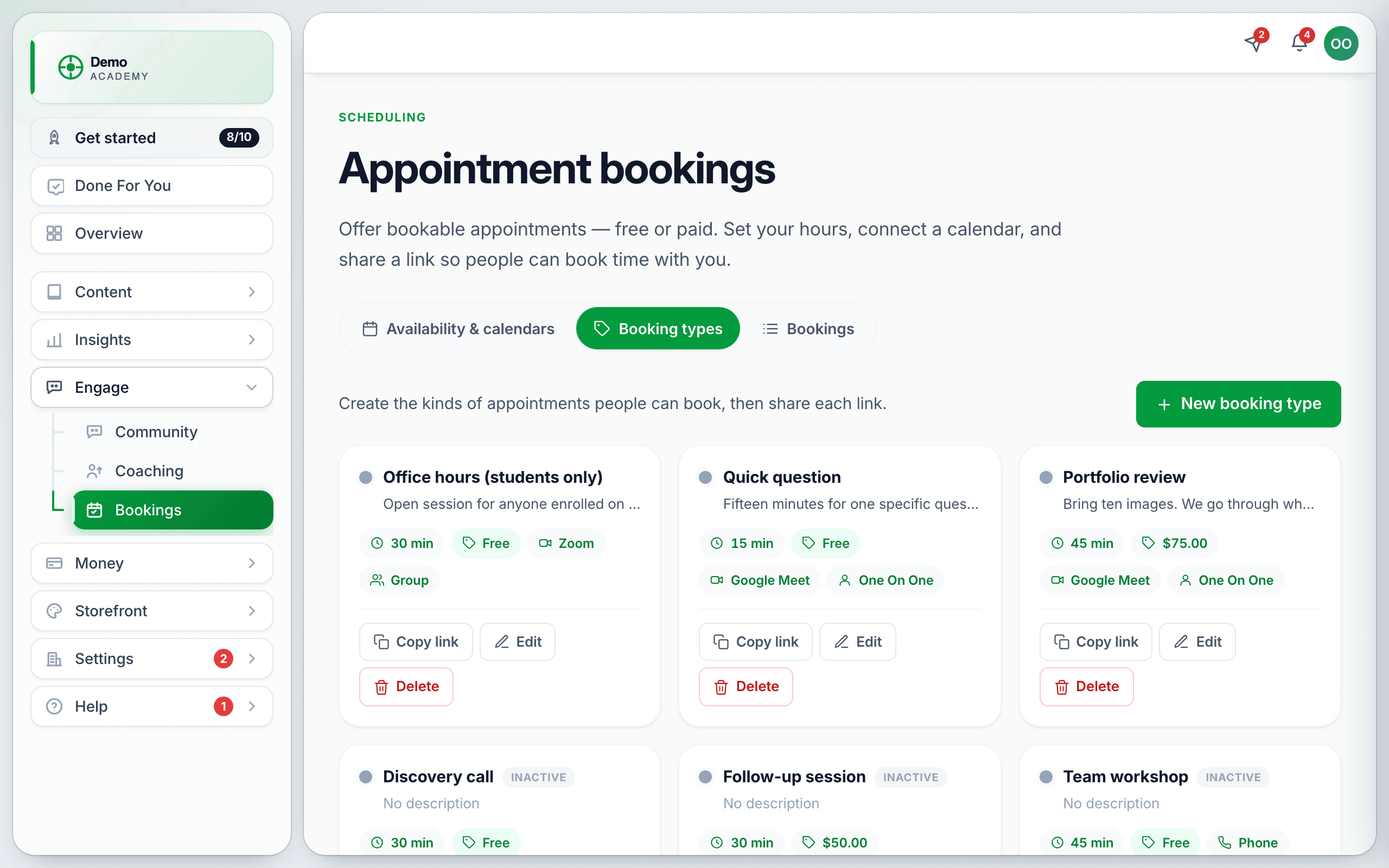
A booking type is one kind of appointment you offer — “Portfolio review, 45 minutes, $75”. Each has:
- Title, description and duration.
- Format — one-to-one, group (with a capacity and an optional waitlist), round robin, or collective.
- Location — Google Meet, Zoom, phone, in person, or a custom link.
- Free or paid. A paid type is sold like anything else you sell, so it needs a connected processor.
- Visibility — public (anyone with the link), enrolled only (your learners), or private.
- Minimum notice, max per day and a rolling window of how far ahead people may book.
- Intake questions — what you want to know before the call.
- Refund policy for paid types.
3. Bookings
The third tab is what has actually been booked, with each appointment’s status — confirmed, canceled, rescheduled, completed or no-show. A paid booking sits briefly as pending while payment goes through, holding the slot.
Sharing it
Three places a booking can be reached:
- Its own page —
/book/your-academy/the-type-slug, which you can send to anyone. - Your catalog — bookable calls appear alongside your courses. See Design your catalog.
- Inside a course — add an Appointment activity to a lesson, and choose whether booking is required to complete it. See Every activity type explained.
?code= auto-apply link is ignored on booking pages and on in-course appointment activities.A sensible order
- Set your time zone, buffers and weekly hours.
- Connect your calendar.
- Create one free, short booking type.
- Book it yourself from the public link, end to end, and check it reaches your calendar.
- Only then create the paid ones and share the link.