An Assignment is the activity type for work a human has to look at. The learner submits something — a file, some typed text, a link or a video — and it sits in your Gradebook until you give it a score. It is the only activity that cannot complete itself.
Assignments are on every plan. There is no Pro gate on creating them, submitting to them or grading them.
Add one to a lesson
Open the course, find the lesson in the content builder, click Add activity and choose Assignment (submit & get graded). It is created straight away with sensible defaults — File upload and Typed text enabled, 100 points, a 60% pass threshold — and the editor pop-up opens.
The fields
- Instructions — the brief. Worth writing properly; it is all the learner gets.
- Submission types — File upload, Typed text, Link, Video recording. Tick as many as you like; the learner picks one.
- Max points and Pass threshold (%) — the score out of, and the percentage needed to pass.
- Due date (optional)
- Max file size (MB) and Allowed file types — comma-separated.
- Allow resubmission after feedback — lets you send work back for another go.
- Rubric (optional) — add criteria with + Add criterion. Learners see the rubric before they start, in a How this is graded box.
What the learner does
The assignment appears in the lesson, and also in Learning → Assignments in their menu, where anything needing their attention is grouped under Action needed. They read the brief, see Worth 100 pts · pass 60% and the rubric, choose how to submit, and send it.
Grade it
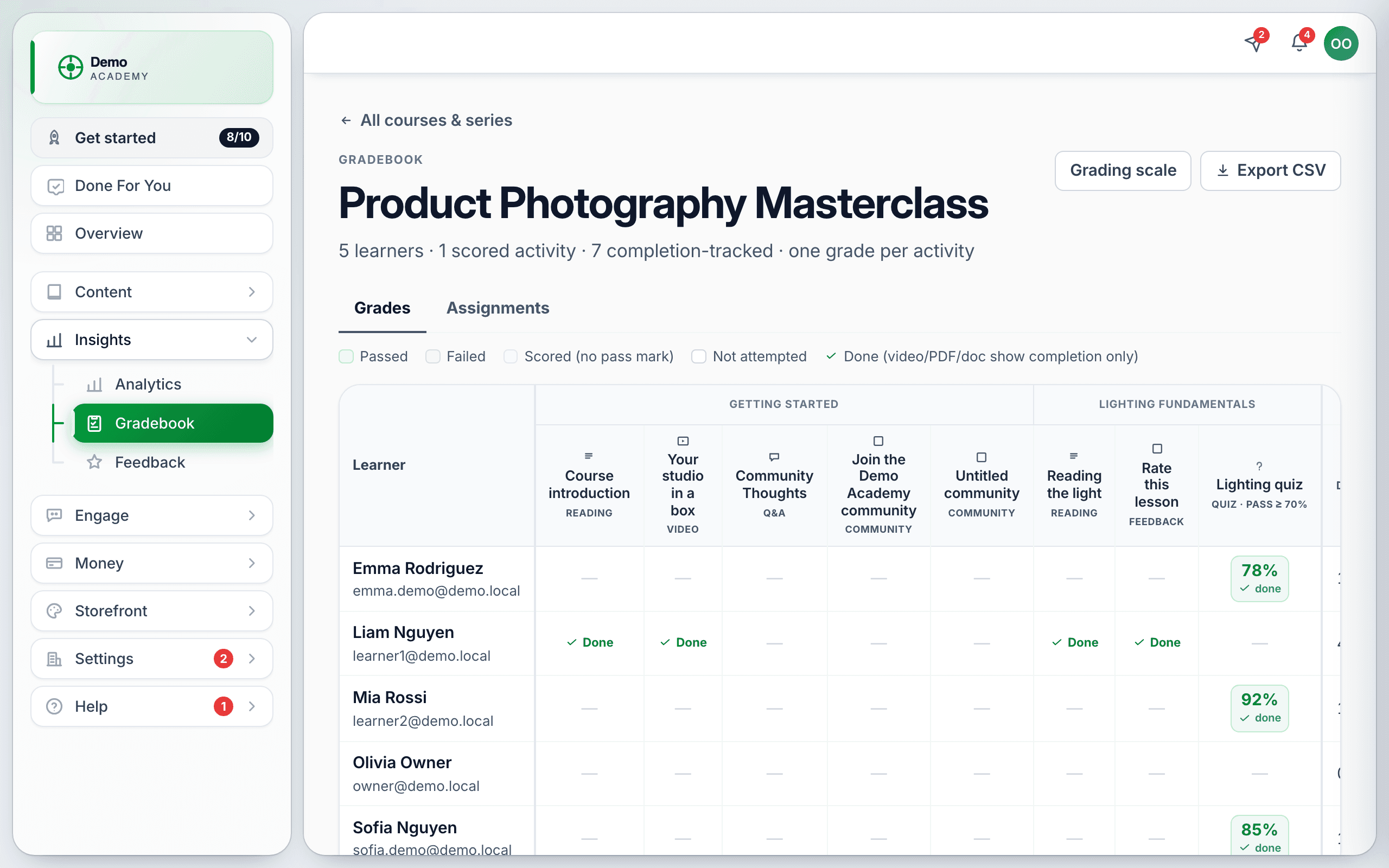
Go to InsightsGradebook — the sidebar row carries a red count when work is waiting. Pick the course, open the Assignments tab, and click a learner’s row to open the grading drawer. Read the submission (Open file for uploads), fill in the score or the rubric, add Written feedback (optional), and Save grade.
If the work needs another attempt, write what needs changing and press Request revision instead. The learner gets an email and a Resubmit your work box — they can even switch submission method on the second go.
Mistakes that are easy to make
- Saving with an empty Score box records a zero. There is no required-field check. The learner is emailed “Not passed” on the spot. Fill the score in before you save.
- Requesting a revision with an empty feedback box wipes the feedback already on that submission — and the learner’s email still has the subject “Your assignment was graded.” Always type something.
- Re-grading erases video feedback. If you recorded a video and later save the grade again without re-recording, the video is dropped.
- Pass threshold 0 passes everybody, including a literal score of zero.
- Changing Max points or Pass threshold later is not retroactive. Grades already given keep their stored percentage, so the gradebook can show a percentage that no longer matches the “/ 100” in the drawer.
Where the scores end up
Assignment scores roll into the Gradebook alongside quiz and SCORM results, feed the letter bands you set under Grading scale, and come out in Export CSV. Learners see their own result under My Grades.