An affiliate is someone outside your business who sends you buyers and takes a cut. Learn 360 splits their cut off at the moment of sale and sends it to them through your own Stripe account, so you never have to track what you owe anyone or send money by hand.
You run it from MoneyAffiliates. The page is built as four numbered steps, and it will not let you skip one.
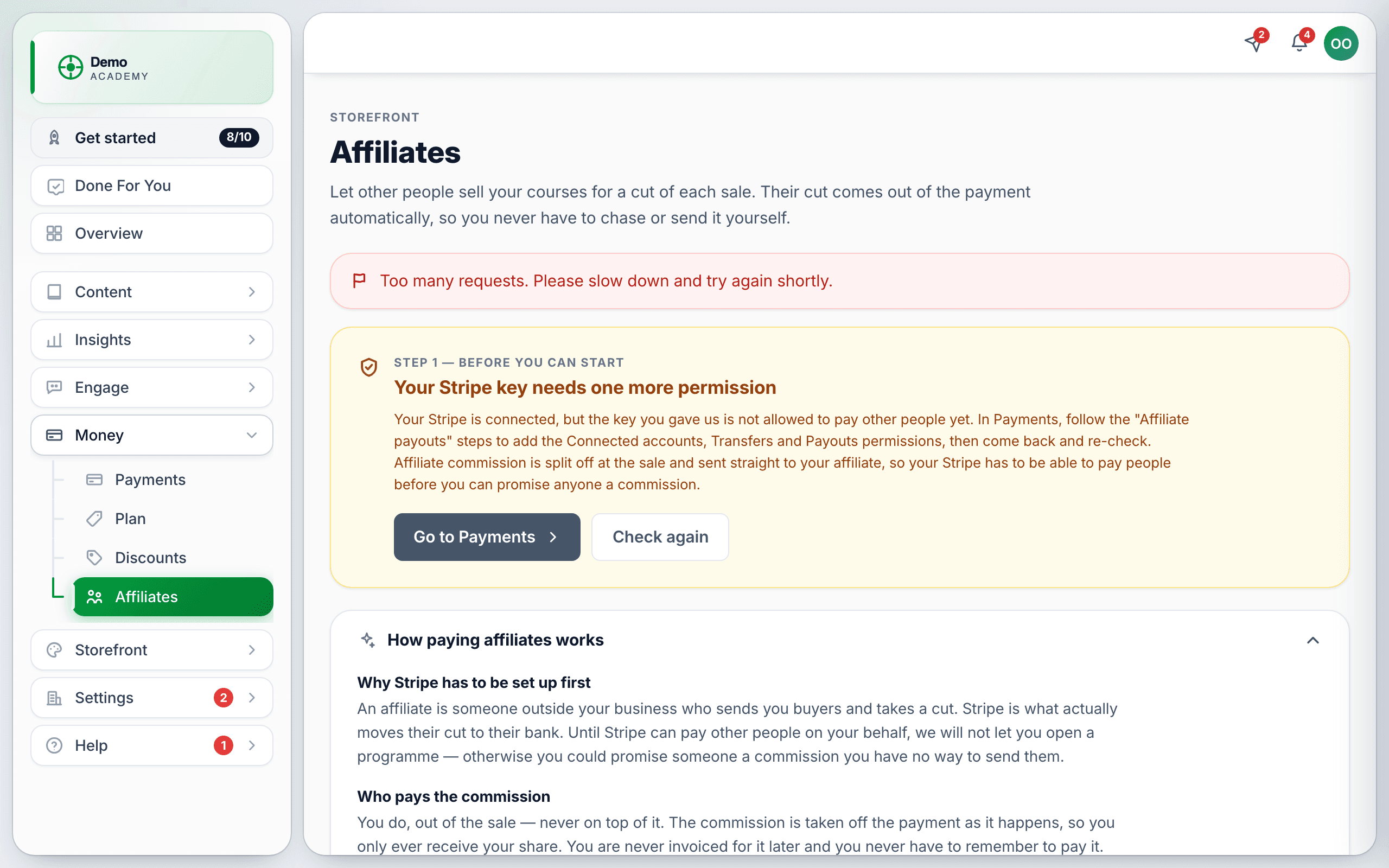
Step 1 — the Stripe permissions nobody expects
Commission is moved by Stripe, so your Stripe key has to be allowed to pay other people. A normal Learn 360 setup deliberately does not grant that.
Until Step 1 is green, the invite form and the go-live button are not rendered at all.
Step 2 — go live, and the pause button
With Step 1 green you can start the program. Pause programme stops affiliates earning on new sales without deleting anything.
Step 3 — what affiliates earn
Set the rate, what it is calculated on, the cookie window, the hold period before money is released, the minimum payout, and whether renewals earn. There is a More settings section for public sign-ups and per-product rates.
Step 4 — bring affiliates in
Two ways:
- Invite by email. Type their address and an optional name, press Invite. They get a referral code, a status of Invited, and a single-use link that expires in 30 days.
- Open public sign-ups. In More settings, tick Let anyone apply to be an affiliate (keep Approve each applicant myself ticked unless you really want it open), save, then share the sign-up link from Step 4. Your tenant login page also grows a Become an affiliate? link.
An affiliate accepts, sets up payouts through Stripe’s own hosted onboarding, and their link goes live. Afterwards they sign in at /affiliate/login with just their email — we send a magic link that lasts an hour. There is no affiliate password to manage.
How a referred sale actually works
Any page opened with ?ref=THEIRCODE drops a first-party cookie. When that visitor buys within your cookie window, the commission is split off at the sale, held for your hold period, then released to the affiliate’s Stripe account automatically.
If you refund a referred sale, Learn 360 asks Stripe to reverse the commission at the same time — provided it is still on hold. Once it has been released, it is gone.
Reading the numbers honestly
These are the places the figures mean less than they look like they do:
- Clicks are under-counted. The click endpoint is rate-limited, the tracker de-duplicates per browser session, and several pages carry no tracker at all. Treat clicks as a rough signal, never as a reconciliation tool.
- “Paid out” means released from hold, not landed in a bank. The actual Stripe payout can still be pending or have failed.
- “Could not be paid” is money the affiliate has lost and will not be paid automatically. It appears only on your screen — their dashboard does not show failed commission at all. If you see it, contact them and settle it yourself.
- A partially refunded sale strands its commission. Release is withheld and nothing is reversed, by design, and no screen explains why that money never moves.
A sensible launch order
- Upgrade to Pro.
- Update your Stripe key with the three Connect permissions, and press Check again.
- Decide and enter your rates, including a rate for every product you want promoted.
- Start the program.
- Invite one friendly affiliate and run a real test purchase through their link.
- Only then open it up.