Once your course basics are saved, click Next: course content to open the content builder. The header reads Step 2 of 2 · Course content, with a Back to basics link if you need to jump back. Everything a learner works through lives here, in three nested levels:
- Sections group the course into chapters. They’re purely organizational — they don’t lock or gate anything.
- Lessons sit inside a section. A lesson is the unit you can schedule, gate and mark required — all the pacing controls live here.
- Activities are the content blocks inside a lesson. Each one is what a learner marks (or auto-completes) as done.
The builder is a single centered column. There is no split-screen preview beside it — preview opens in its own browser tab, covered at the end.
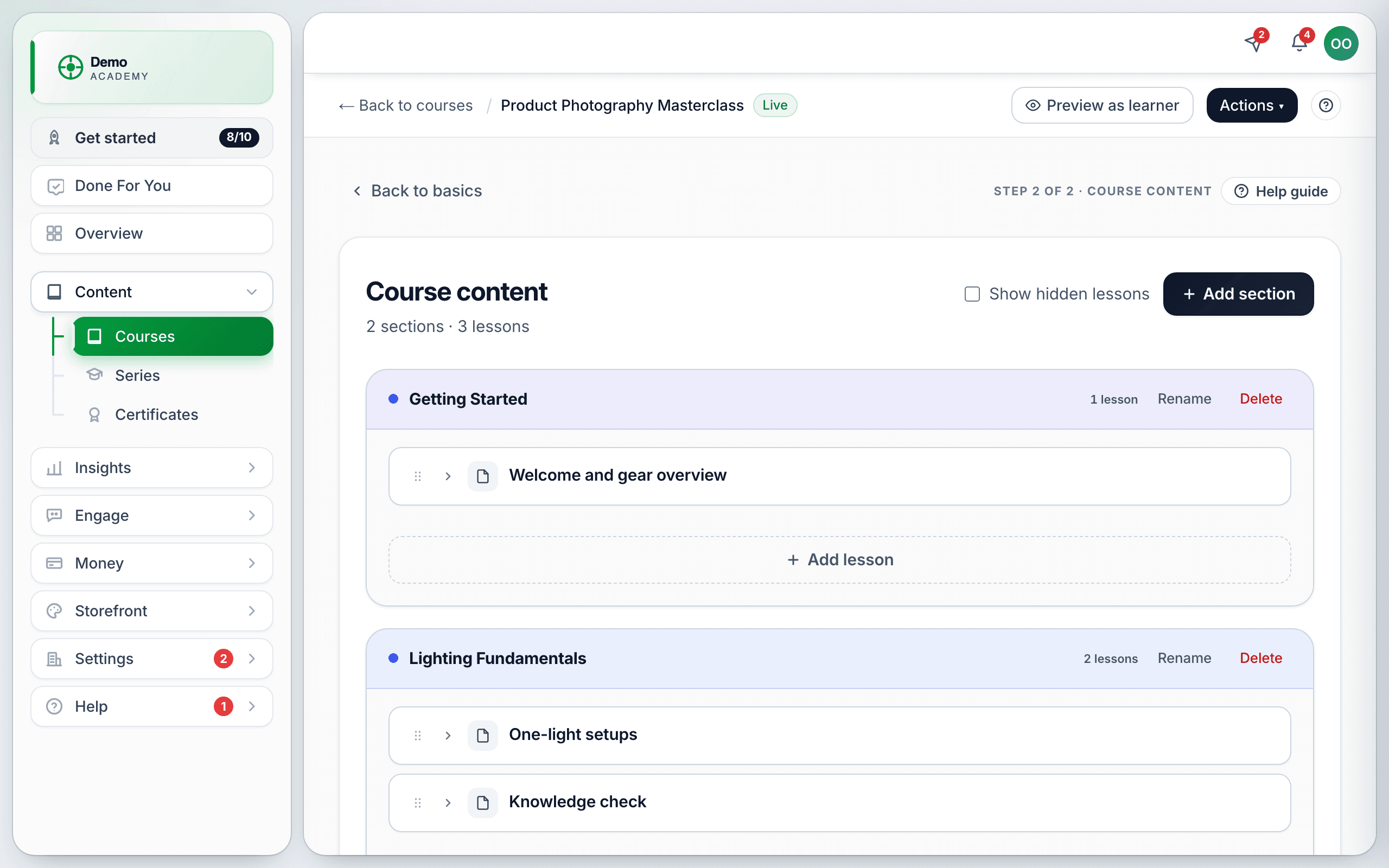
Sections
Click Add section, type a title, press Enter. Sections keep a long course readable — “Getting started,” “Core skills,” “Wrap-up” — but have no effect on progression. You can Rename or Delete a section from its row, and drag lessons between sections.
Lessons
At the foot of each section is a dashed Add lesson button. Type the title and press Enter — the placeholder tells you so: Lesson title (press Enter to save, Escape to cancel).
Lesson rows carry small status pills so you can read the course at a glance:
- Optional — the lesson isn’t marked required.
- Scheduled (clock icon) — a drip date or delay is set.
- Prereq (lock icon) — locked until another lesson is finished.
Lesson settings
Click a lesson to open it, then open its Lesson settings panel. Unlike activity content, this panel saves with an explicit Save lesson settings button. The fields:
- Title — up to 200 characters; can’t be empty.
- Description (optional)
- Required (otherwise lesson is optional)
- Learners must complete activities in order — the force-sequence switch, on by default. Each activity stays locked until the one before it is complete. Turn it off for reference material learners jump around in.
- Requires another lesson first (optional) — a prerequisite. Learn 360 blocks impossible setups: a lesson can’t require itself, can’t point at another course, and can’t create a loop.
- Estimated time (minutes) — display only; it does not gate anything.
- Hide / Unhide — take a lesson out of circulation without deleting it. Both live in this panel.
Release — the three drip options
In Lesson settings you can release a lesson Immediately when learner joins, After N days from joining, or On a specific date.
Activities
Open a lesson and you get its ACTIVITIES list plus an Add activity button. Click any activity card to edit it in a pop-up — there is no separate activity screen any more. Each card shows its type in small caps (TEXT, VIDEO, QUIZ…) and a Delete action.
The Add activity menu
Add activity opens a menu of sixteen types. They fall into four groups:
- Read and watch — Text, Image, Media block (image + text), Embed (YouTube/Vimeo/Loom etc.), Video upload, PDF, Document.
- Check understanding — Quiz, SCORM training package, Assignment (submit & get graded).
- Talk and rate — Q&A discussion, Feedback (star rating + review).
- Sell and connect — Appointment (book a call or session), Coaching offer (invite them to work with you), Community (join the discussion), Certificate.
Each one is explained in full — what it’s for, how it’s authored, how it completes — in Every activity type explained.
How activities get marked complete
This is the part that most often surprises authors:
- Passive types — Text, Image, Media block and Embed have no mark-complete button. Pressing Next page completes them.
- Document completes automatically: the card says “Opening the document marks this activity complete,” and the single Open / download button does exactly that.
- Video completes at a watched percentage you set, and can prevent skipping ahead.
- Quiz, Assignment and SCORM complete on a result, not on being opened.
Page breaks
Long lessons can be split with Add page break. The builder then shows PAGE 2 STARTS HERE markers, and learners move through with Next page.
Q&A discussion
The Q&A discussion activity gives a lesson its own question board. Its editor has one required field, Intro text, and warns: “Intro text is required. The course cannot be published until this is filled in.”
Feedback = your course reviews
The Feedback (star rating + review) activity is how you collect reviews. Drop it near the end of a course, and what comes back lands in Insights → Feedback for moderation — pending, approved, published or rejected, with only approved and published ones feeding your analytics and any public display.
The whole workflow is covered in Course feedback & reviews.
Reorder, move & preview
Drag the handles to reorder sections, lessons and activities, and drag lessons between sections. An empty section shows a dashed Drop a lesson here target.
To check your work, use Preview as learner in the top bar. It opens a new tab at /preview/<courseId> with three tabs — Landing page, Inside the course and Free preview — plus Refresh and Close. See Preview as a learner.
Next steps
- Build a quiz to check understanding.
- Add an assignment for work you mark yourself.
- Attach job aids learners keep afterwards.
- Award a certificate at the end.
- Publish the course when it’s ready.